
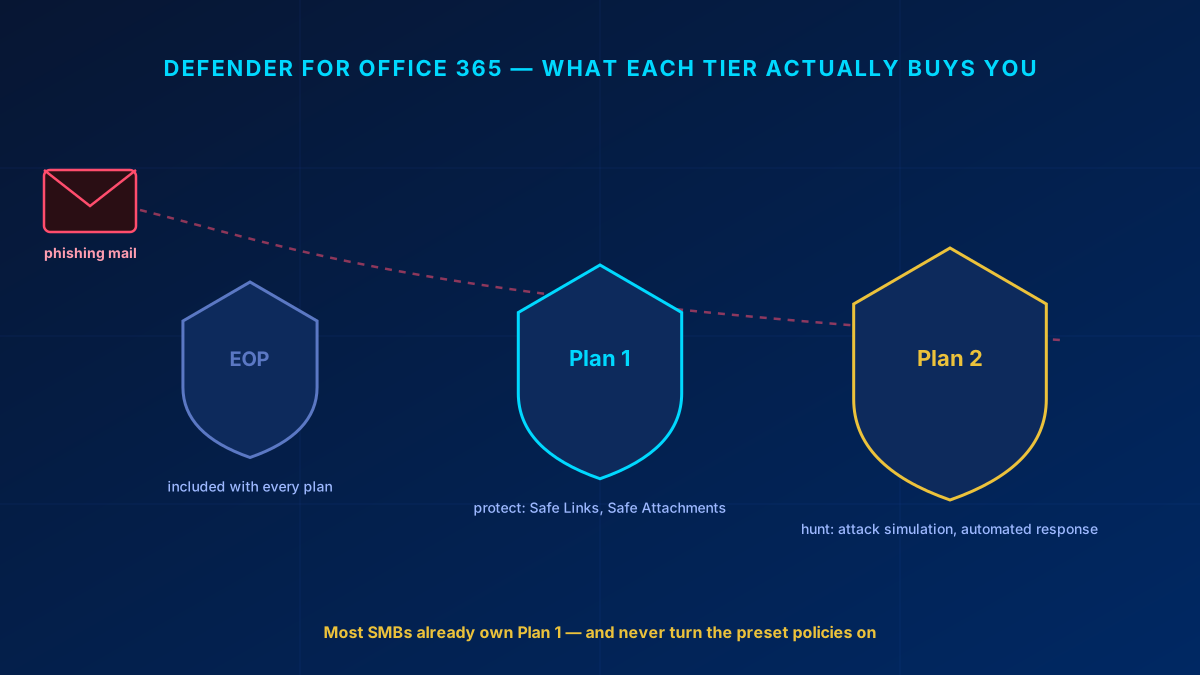
Almost every tenant I get called into after a phishing incident already had the licence that would have stopped it. Defender for Office 365 Plan 1 ships with Business Premium. Nobody had switched the preset policies on. The mail landed, someone clicked, and the post-mortem turned into a licensing discussion that should have happened two years earlier.
This is the guide I wish those tenants had read first: what Exchange Online Protection already does, what Plan 1 and Plan 2 add on top, and the setup that gets an SMB most of the way there in an afternoon.
In short
Exchange Online Protection (EOP) comes with every mailbox and handles spam and known malware. Plan 1 — included in Business Premium and, since 1 July 2026, in Office 365 E3 and Microsoft 365 E3 — adds Safe Links, Safe Attachments and real impersonation protection. Plan 2 adds hunting, attack simulation and automated investigation, and is mostly for teams with someone to actually use it. For most SMBs the win is not buying more: it is turning on the Standard preset security policy, fixing SPF/DKIM/DMARC, and restricting OAuth consent.
What you already have: Exchange Online Protection
Every mailbox in Microsoft 365 sits behind the built-in security features for cloud mailboxes — the layer still widely known as Exchange Online Protection, EOP — whether you configured it or not. It handles connection filtering, anti-spam, anti-malware based on known signatures, and outbound spam control. It is genuinely decent at the bulk problem: the obvious spam, the mass-mailed malware, the stuff with a bad reputation attached.
What EOP does not do is judge intent. A clean, well-written mail from a freshly registered domain, with no attachment and one link that only turns malicious an hour after delivery, looks fine to a signature-based filter. That is the gap the paid tiers exist to close.
What Plan 1 adds
Plan 1 is the tier most SMBs already own without knowing it. It is included in Microsoft 365 Business Premium and — effective 1 July 2026 — in Office 365 E3 and Microsoft 365 E3 as well. Four things matter:
- Safe Links rewrites URLs in inbound mail and re-checks them at click time. The URLs are scanned before delivery too; the point of the click-time check is that a link's reputation can change between delivery and the click. This is what catches the link that was clean when it arrived and weaponised afterwards.
- Safe Attachments detonates attachments in a sandbox before delivery, which catches malware that has no signature yet.
- Anti-phishing with impersonation protection — the one that actually earns its keep. You list your executives and your own domain, and Defender flags mail that pretends to be them. Without this, a display-name spoof of your CEO sails straight through.
- Real-time detections — Microsoft's name for the Plan 1 investigation report. Its presence in the portal is the quickest way to tell Plan 1 from Plan 2.
If you have Business Premium and have not configured impersonation protection, you own a lock you never fitted to the door.
What Plan 2 adds — and who needs it
Plan 2 (included in E5, otherwise an add-on) is a different category of tool. It adds Threat Explorer and hunting, Automated Investigation and Response (AIR), Attack Simulation Training, and campaign views that group related mail into one incident.
The honest assessment: Plan 2 pays for itself when someone will actually open Threat Explorer on a Tuesday. If your tenant has no one whose job includes threat hunting, most of Plan 2 will sit unused — and you would get more security per euro by finishing your Plan 1 configuration and rolling out phishing-resistant MFA. Attack Simulation Training is the exception worth naming: for organisations that need documented user awareness training, it is a genuinely useful reason to go to Plan 2.
Why phishing still gets through
Three patterns account for most of what I see reaching inboxes in properly licensed tenants.
Tenant-to-tenant phishing. The mail comes from a real, compromised Microsoft 365 tenant. It has valid SPF, valid DKIM, a clean sending reputation, and it originates inside the same cloud your tenant lives in. Reputation-based filtering has almost nothing to work with. This is where impersonation protection and Safe Links carry the load.
High-confidence phishing overrides your allow-lists. This one surprises people: mail Defender classifies as high-confidence phishing is quarantined regardless of your allow entries. That is deliberate and correct — but it means a legitimate sender caught by it will not be rescued by a tenant allow-list, and you need to fix the actual reason (usually the sender's own DMARC) instead.
OAuth consent phishing. No malicious link, no attachment. The mail asks the user to authorise an app. The user clicks accept and hands over a token that reads their mail without a password — and never trips your email filter, because nothing malicious was ever delivered. Email security cannot solve this one; consent governance can. I covered the mechanics in Part 3 of the Zero Trust series.
The sane SMB setup
In rough order of impact per hour spent:
- Turn on the Standard preset security policy in the Defender portal and scope it to all users. Microsoft maintains the settings; you stop hand-tuning spam thresholds forever. Use Strict for executives and finance. This single step closes most of the gap in most tenants.
- Configure impersonation protection — add your own domain and your handful of high-risk users (CEO, CFO, whoever signs payments). Preset policies do not know who your executives are; you have to tell them.
- Fix SPF, DKIM and DMARC on your own domains. Publish SPF, enable DKIM signing for every sending domain, then move DMARC from
p=nonetop=quarantineonce your reports are clean, and on top=rejectafter that. Microsoft's documented goal isp=rejectfor every custom domain and subdomain; quarantine is the staging post, not the destination. This stops other people being phished in your name — and it is what makes your mail trusted elsewhere. - Deploy the Report Phishing button and tell people to use it. User reports are the only detection layer that scales to intent, and in Plan 2 they feed AIR directly.
- Restrict OAuth app consent to verified publishers, with an admin consent workflow. Cheapest high-value change on this list.
- Review quarantine weekly for the first month. You will find both the false positives and the pattern of what is actually targeting you.
The order matters more than the tooling. A tenant with preset policies on, DMARC enforced and consent locked down beats a tenant with Plan 2 and default settings — every time.
When a third-party filter makes sense
Adding a third-party gateway in front of a properly configured Defender setup usually buys less than people expect, and costs you the native signal correlation with Entra ID and Defender for Endpoint. It is a reasonable choice in three cases: you need a feature Defender genuinely lacks (certain archiving or eDiscovery workflows), you are running a hybrid or non-Microsoft mail estate, or a compliance framework requires a separately attested filtering layer.
Doing it because "Defender missed one" is usually the wrong reason. Check whether the preset policies were even enabled first — in my experience that is the actual finding more often than not.
Glossary
- EOP (Exchange Online Protection)
- The baseline mail filtering included with every Microsoft 365 mailbox: connection filtering, anti-spam and signature-based anti-malware.
- Safe Links
- Rewrites URLs in mail and re-checks them at click time, catching links that turn malicious after delivery. In Microsoft Teams, links are checked at click time but are not rewritten.
- Safe Attachments
- Detonates attachments in an isolated sandbox before delivery to catch malware with no known signature.
- Impersonation protection
- Anti-phishing rules that flag mail pretending to be your own domain or named users — you must configure the protected users yourself.
- Preset security policy
- Microsoft-maintained Standard and Strict policy bundles that apply recommended Defender settings without manual tuning.
- DMARC
- A DNS policy telling receivers what to do with mail that fails SPF and DKIM. Move from p=none through p=quarantine to p=reject; p=reject is the state that actually stops spoofing of your domain.
- AIR (Automated Investigation and Response)
- Plan 2 automation that investigates alerts and proposes or applies remediation without an analyst starting the work.
Frequently Asked Questions
Is Microsoft Defender for Office 365 included in Business Premium?
Yes — Microsoft 365 Business Premium includes Defender for Office 365 Plan 1, which gives you Safe Links, Safe Attachments, anti-phishing with impersonation protection and real-time detections. Effective 1 July 2026, Plan 1 is also included in Office 365 E3 and Microsoft 365 E3. Plan 2 (hunting, attack simulation, automated investigation) is included in E5 or bought as an add-on. Most SMBs already own Plan 1 and simply have not enabled the preset policies.
Do I need Defender for Office 365 Plan 2?
Only if someone will use it. Plan 2 adds Threat Explorer, hunting, campaign views and automated investigation — valuable when you have a person whose job includes looking at them. If nobody in the tenant hunts threats, you get more security per euro by finishing your Plan 1 configuration. The one broadly useful exception is Attack Simulation Training when you need documented user-awareness training.
Why do phishing emails keep getting through Microsoft Defender?
Usually one of three reasons: the mail comes from a genuine compromised Microsoft 365 tenant so reputation filtering has nothing to flag; impersonation protection was never configured with your actual executives and domains; or it is OAuth consent phishing, which contains no malicious link or attachment and cannot be caught by an email filter at all. Enabling the Standard preset policy and configuring impersonation protection closes most of the first two.
Should I use Defender for Office 365 or a third-party email filter?
For a Microsoft-centric SMB, a correctly configured Defender setup is usually enough, and it keeps signal correlation with Entra ID and Defender for Endpoint intact. A third-party gateway is justified when you need a capability Defender lacks, run a hybrid or non-Microsoft mail estate, or must show a separately attested filtering layer for compliance. "Defender missed one" is rarely the real reason — check whether the preset policies were enabled first.