
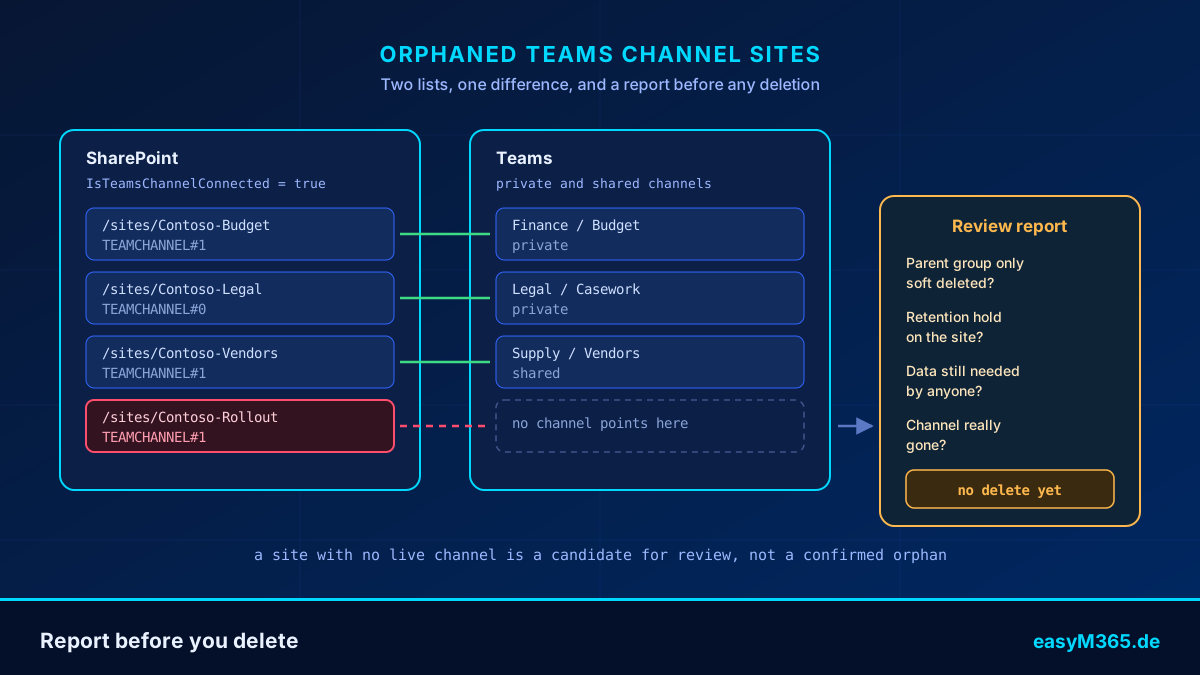
Ten SharePoint sites were still sitting in a tenant weeks after the team they belonged to had been deleted. Each one carried a TEAMCHANNEL template, each one held storage, and none of them showed up anywhere in the Teams admin center. The first version of this post treated that as a deletion problem and handed you a script for it. Wrong order of operations, and the script rested on a rule Microsoft does not document anywhere. This is the corrected version, and the correction changed the whole shape of the job.
In short
Microsoft documents that deleting a team also deletes its channels and their associated site collections. So a channel site that outlives its team is an exception, and Learn names the documented cause: sites under retention are not deleted until the retention period expires. That makes "why is this still here?" the first question, not "how do I delete it?". The documented way to find channel sites is IsTeamsChannelConnected, not an empty GroupId. Build a read-only report by comparing every channel site in SharePoint against every live private and shared channel in Teams, check each difference by hand, and only then reach for Remove-SPOSite.
What a channel site actually is
Every private channel in a team gets its own SharePoint site, and so does every shared channel. Microsoft calls both of them channel sites. They carry a custom template ID, TEAMCHANNEL#0 or TEAMCHANNEL#1, which Learn describes as being there for easier management through PowerShell and the Graph API.
Two properties of a channel site matter for anything you plan to do to it:
- Permissions come from the channel, not from SharePoint. Membership of the site owner and member groups is kept in sync with the channel membership, and site permissions for a channel site cannot be managed independently through SharePoint. The permissions panel shows them read-only.
- Teams owns the lifecycle. Learn puts it plainly: "Teams manages the lifecycle of the private channel site. If the site is deleted outside of Teams, a background job restores the site within four hours as long as the private channel is still active." Delete a live channel's site from PowerShell and you get four hours of a broken channel, then the site comes back.
One more documented behaviour: if a private channel or a team containing a private channel is restored, the sites are restored with it. Restore a channel site after the channel's 30-day soft-delete window has passed and it operates as a standalone site from then on.
What Microsoft says happens when the team goes
The original post skipped this paragraph of the documentation, which is where the trouble started. Microsoft's own guidance on deleting a team:
When you delete a team, team activity in standard and private channels (and associated site collections), files, and chats are also deleted. If the deleted team has sites under retention, then they won't be deleted until the retention period expires.
Channel sites are supposed to go with the team. Archiving works the same way: archiving a team also archives its private channels and their associated site collections. And restoring the Microsoft 365 group within the 30-day soft-delete window brings back the private channels and their site collections too.
So a channel site that is still there after its team is gone is not the normal outcome. It is an exception, and Learn hands you the documented explanation for it in the same sentence: retention. A Purview retention policy or retention label on the site keeps it alive past the team, by design. Purview documentation is consistent with that from the other side: users see an error message if they try to delete a library, list, or site that is subject to retention.
That changes the job. If a surviving channel site is most likely surviving because something is deliberately holding it, then a script that deletes it on a pattern match is working against your own compliance configuration. The first question is why the site is still there.
The rule the old version used, and why it is gone
The original detection was GroupId equal to all zeroes on a TEAMCHANNEL#1 site. In that one tenant, the ten sites I already knew to be orphaned were exactly the ten with an empty GroupId. That is a correlation on a single sample, and no Learn page states that a healthy channel site carries its parent group's GUID in that property. What Learn does document about GroupId is the server-side filter -GroupIdDefined $true, described as returning "all sites that have an associated Microsoft 365 Group". A channel site is its own site collection without its own group, so an empty value there tells you very little about whether anyone still needs the site.
My own FAQ in the old version suggested RelatedGroupId instead. That property is not documented on Learn either, so it is no better as the gate on a deletion. Both are out.
What is documented is IsTeamsChannelConnected. Example 10 on the Get-SPOSite reference page uses it to return "a list of sites connected to a Microsoft Teams Private or Shared channel":
Get-SPOSite -Limit ALL | Where-Object { $_.IsTeamsChannelConnected -eq $true }Two things about that call. First, it covers both private and shared channel sites, which a filter on -Template "TEAMCHANNEL#1" does not: Learn names TEAMCHANNEL#0 and TEAMCHANNEL#1, so the old filter silently skipped every #0 site. Second, Learn warns that when -Limit or -Filter is used, a published list of site properties is not populated and may contain default values. Before you act on any single site, re-read it on its own with Get-SPOSite -Identity <url>.
A detection that only reads
Build the list of channel sites SharePoint knows about, build the list of channels Teams still has, and look at the difference. Both halves are documented, and neither of them requires you to guess what a property on a single site means.
Step 1: the SharePoint side
Connect as a SharePoint administrator, ideally through a PIM activation rather than a standing role assignment, and pull every channel site in the tenant.
Connect-SPOService -Url https://contoso-admin.sharepoint.com

$channelSites = Get-SPOSite -Limit All |
    Where-Object { $_.IsTeamsChannelConnected -eq $true }

$channelSites | Select-Object Url, Template | Format-Table -AutoSize
Step 2: the Teams side
Graph does not offer "give me the site of this channel" as a single property, but it does offer the channel's file location, and that folder lives inside the channel site. Learn documents GET /teams/{id}/channels/{id}/filesFolder, exposed in the Graph PowerShell SDK as Get-MgTeamChannelFileFolder, which returns a driveItem with a webUrl.
To get the list of teams, Learn's own guidance for listing all teams in an organization is to filter groups on the provisioning option:
Connect-MgGraph -Scopes 'Group.Read.All','Channel.ReadBasic.All','Files.Read.All'

$teams = Get-MgGroup -All -Filter "resourceProvisioningOptions/Any(x:x eq 'Team')"

Get-MgTeamChannel -TeamId $teams[0].Id -Filter "membershipType eq 'private'"
One caveat straight from Learn: certain unused old teams do not have resourceProvisioningOptions set, so this filter can miss a team. That matters for the direction of the error, which I come back to in a moment.
Step 3: the comparison
A channel site is in use when some live channel's file location sits inside it. So the test is a prefix match between the site URL and the folder URLs, after URL-decoding the folder URL. No parsing of library names, no locale assumptions.
Get the direction of the error right, because it decides whether this script can hurt you. If the match fails for a site that is actually live, the site lands in the report and a human looks at it. If a team is missing from the Graph query, its channel sites also land in the report and a human looks at them. Every failure mode of this script produces one more line to read, never one more site deleted. That is the only reason it is safe to run against a production tenant.
The report script
This script reads. It writes a CSV and prints a table. It does not delete, archive, lock, or modify anything, and there is no switch in it that makes it do so.
<#
.SYNOPSIS
    Reports Teams channel sites that no live private or shared channel points at.
    Read-only: this script changes nothing.
.DESCRIPTION
    Builds two lists and compares them.
      1. SharePoint side: every site where IsTeamsChannelConnected is true.
      2. Teams side: the file location of every private and shared channel
         of every team, via Microsoft Graph.
    A channel site that no live channel points at is a candidate for review,
    not a confirmed orphan. Check every candidate by hand before acting.
.NOTES
    Modules : Microsoft.Online.SharePoint.PowerShell, Microsoft.Graph.Groups,
              Microsoft.Graph.Teams
    Role    : SharePoint Administrator (activate through PIM)
    Scopes  : Group.Read.All, Channel.ReadBasic.All, Files.Read.All
#>
[CmdletBinding()]
param(
    [Parameter(Mandatory = $true)]
    [string]$AdminUrl,
    [string]$ReportPath = ".\channel-site-report.csv"
)

Connect-SPOService -Url $AdminUrl
Connect-MgGraph -Scopes 'Group.Read.All','Channel.ReadBasic.All','Files.Read.All'

# 1. SharePoint side
$channelSites = Get-SPOSite -Limit All |
    Where-Object { $_.IsTeamsChannelConnected -eq $true }
Write-Host "Channel sites in SharePoint: $($channelSites.Count)"

# 2. Teams side
$liveFolders = [System.Collections.Generic.List[string]]::new()
$teams = Get-MgGroup -All -Filter "resourceProvisioningOptions/Any(x:x eq 'Team')"

foreach ($team in $teams) {
    try {
        $channels = Get-MgTeamChannel -TeamId $team.Id |
            Where-Object { $_.MembershipType -in 'private','shared' }
    } catch {
        Write-Warning "Channels unreadable for '$($team.DisplayName)': $($_.Exception.Message)"
        continue
    }

    foreach ($channel in $channels) {
        try {
            $folder = Get-MgTeamChannelFileFolder -TeamId $team.Id -ChannelId $channel.Id
            $liveFolders.Add([uri]::UnescapeDataString($folder.WebUrl))
        } catch {
            Write-Warning "File location unreadable for '$($team.DisplayName)/$($channel.DisplayName)': $($_.Exception.Message)"
        }
    }
}
Write-Host "Live private and shared channels resolved: $($liveFolders.Count)"

# 3. Compare
$report = foreach ($site in $channelSites) {
    $prefix = $site.Url.TrimEnd('/') + '/'
    $match  = $liveFolders | Where-Object { $_.StartsWith($prefix, 'OrdinalIgnoreCase') }

    [pscustomobject]@{
        Url              = $site.Url
        Template         = $site.Template
        LiveChannelFound = [bool]$match
        StorageUsedMB    = $site.StorageUsageCurrent
        Owner            = $site.Owner
    }
}

$report | Sort-Object LiveChannelFound, Url |
    Export-Csv -Path $ReportPath -NoTypeInformation -Encoding UTF8
Write-Host "Report written to $ReportPath"

Write-Host "`nCandidates for review (no live channel found):"
$report | Where-Object { -not $_.LiveChannelFound } | Format-Table -AutoSize
StorageUsageCurrent comes from a call that used -Limit, so treat the number as indicative and re-read the individual site before you rely on it. On a large tenant this takes a while, because it walks every team. Run it as a scheduled read and mail yourself the CSV if you want it monthly.
Four checks before you delete a candidate
Every line in that CSV with LiveChannelFound = False is a question, not a verdict. Four checks answer it, and all four are cheap.
| Check | How | What it means |
|---|---|---|
| Is the parent group only soft-deleted? | Get-MgDirectoryDeletedItemAsGroup, or GET /directory/deletedItems/microsoft.graph.group |
A deleted Microsoft 365 group is retained for 30 days. Restoring it brings back the team, its private channels and their site collections. Delete the site inside that window and you have quietly broken the restore. |
| Is the site under retention? | Purview retention policies and labels covering SharePoint sites | This is the documented reason a channel site outlives its team. If a retention setting is holding it, deleting it is the wrong action, and Purview will resist you anyway. |
| Is anyone still going to want the content? | Re-read with Get-SPOSite -Identity <url>, open the site, export what matters |
Channel site permissions came from a channel that no longer exists, so the people who used it cannot get in to check for you. That makes it your job. |
| Is the channel genuinely gone? | Teams admin center, plus the fact that the site did not match any live channel | If the channel is still active, a background job restores the site within four hours and all you achieved was an outage on that channel. |
Two tools that do not help here
Before you build anything, know what Microsoft's own governance features will not do for channel sites. Both exclusions are documented, and both surprised me.
Microsoft 365 Archive cannot archive a channel site. Learn lists channel sites among the site types that are not available to archive, because the feature supports a fixed set of site templates and TEAMCHANNEL is not among them. In the SharePoint admin center, archiving a group-connected site that has channel sites is blocked outright, and through PowerShell or Graph only the parent team site is archived while the channel sites stay active. That also settles what the archive confirmation screenshot in the original version of this post was showing, which was never a channel site. It has been removed. What archiving does cover is a separate topic.
Inactive site policies do not see channel sites either. SharePoint site lifecycle management would otherwise be the right tool: its policy execution report even has a column for whether a retention policy applies to a site. But its documented out-of-scope list includes "sites associated with Shared and Private Teams channels".
Channel sites fall through the gap between both features, which is why a hand-built report is still the answer in 2026. A documented middle step does exist between leaving a site alone and deleting it: Set-SPOSite -Identity <url> -LockState NoAccess blocks access without removing the site, and ReadOnly keeps it visible but frozen. Unlocking is one command. Locking an uncertain candidate for a quarter and seeing whether anyone complains costs nothing.
If you do delete
Do it one site at a time, from the reviewed CSV, with -WhatIf first. Both deletion cmdlets support it natively, so there is no need for a homemade dry-run switch.
# Confirm what the call would touch, without touching it
Remove-SPOSite -Identity https://contoso.sharepoint.com/sites/Contoso-Rollout -WhatIf

# Then, once, deliberately, for one reviewed site
Remove-SPOSite -Identity https://contoso.sharepoint.com/sites/Contoso-Rollout -NoWait

# Changed your mind, or picked the wrong line in the CSV
Restore-SPODeletedSite -Identity https://contoso.sharepoint.com/sites/Contoso-Rollout
Remove-SPOSite does not delete permanently. Learn is explicit that the site moves to the Recycle Bin and that Restore-SPODeletedSite brings it back; -NoWait lets the call return instead of polling the operation. Deleted sites are retained for 93 days, and SharePoint keeps backups for a further 14 days beyond the actual deletion, during which Microsoft Support can still initiate a full site collection restore.
One correction to a belief I held and repeated in the original: deleted sites in the Recycle Bin do not count toward your organization's total storage usage. Learn states it directly and adds that the storage figure can take up to 48 hours to update. If your motivation is reclaiming storage, emptying the Recycle Bin buys you nothing. The one real reason to purge is URL reuse: recreating a site at the same address requires a permanent deletion first, and even then the URL can take up to 24 hours to free up.
Get-SPODeletedSite -Limit All |
    Where-Object { $_.Url -like '*/sites/Contoso-Rollout' }

Remove-SPODeletedSite -Identity https://contoso.sharepoint.com/sites/Contoso-Rollout -WhatIf
Remove-SPODeletedSite is the point of no return, so keep the -WhatIf until you mean it. Note also that the modern admin center will not permanently delete a group-connected site at all; the cmdlet will, and when it does it deletes the site only, not the associated group. And keep the two lists separate in your head: Get-SPOSite does not return site collections that are in the Recycle Bin, so verifying a deletion means checking both cmdlets.
Tooling notes with documented answers
Three problems the original post described as mysteries have documented answers. They cost me an afternoon each.
- The module fails to import. Learn names a known issue between the SharePoint Online Management Shell module and the SharePoint Client Components SDK: if both are installed on the same computer, the module fails to load. Uninstall the SDK. That is the boring explanation for most assembly load failures on a fresh admin workstation.
- PowerShell 7 does not find the cmdlets. There is a documented import for that, and it is not "go back to 5.1":
Import-Module Microsoft.Online.SharePoint.PowerShell -UseWindowsPowerShell. - No sign-in window appears, or the connection fails.
Connect-SPOService -Url <admin url> -UseSystemBrowser $trueauthenticates through the system browser using MSAL, and a registry key saves you typing it every time. For the older "Could not connect to SharePoint Online" error, Learn gives the modern-authentication form:Connect-SPOService -Credential $creds -Url <admin url> -ModernAuth $true -AuthenticationUrl https://login.microsoftonline.com/organizations.
The original post also spent several sections on PnP.PowerShell version conflicts and a withdrawn cmdlet. PnP is a community project and is not documented on Microsoft Learn, so those claims are gone. The script above needs the SharePoint Online Management Shell and the Graph SDK, nothing else.
Key takeaways
- Deleting a team deletes its channels and their site collections. A surviving channel site is the exception, and retention is the documented cause.
- Use
IsTeamsChannelConnected. An emptyGroupIdis not a documented signal, and neither isRelatedGroupId. - A template filter on
TEAMCHANNEL#1alone misses everyTEAMCHANNEL#0site. - Detect by comparing SharePoint's channel sites against Teams' live channels, and make sure every failure mode of your script adds a line to a report rather than a site to a delete queue.
- Microsoft 365 Archive and inactive site policies both exclude channel sites, so this stays a manual job.
- Delete one site at a time with
-WhatIffirst. You have 93 days andRestore-SPODeletedSiteto change your mind, and purging the Recycle Bin frees no storage.
Orphaned channel sites are one symptom of a lifecycle that was never designed end to end. If you are auditing a tenant anyway, a SharePoint permission audit surfaces overshared and unowned content in the same pass. If you want someone to run the report and read it with you, get in touch.
Glossary
- Channel site
- The SharePoint site created when you add a private or shared channel to a team. Only channel owners and members can access it, and its permissions are managed in Teams, not SharePoint.
- TEAMCHANNEL#0 / TEAMCHANNEL#1
- The two custom site template IDs Microsoft assigns to channel sites, so they can be recognized through PowerShell and the Graph API.
- IsTeamsChannelConnected
- The
Get-SPOSiteproperty Microsoft documents for identifying sites connected to a Teams private or shared channel. The documented alternative to guessing from templates or GUIDs. - Soft delete
- Two different windows that are easy to confuse: a deleted Microsoft 365 group is retained for 30 days, while a deleted SharePoint site sits in the Recycle Bin for 93 days.
- Preservation Hold library
- The hidden library Purview creates on a site to keep copies of content that is subject to retention. Its existence is why a site under retention resists deletion.
- Site lifecycle management
- SharePoint Advanced Management policies that find inactive sites and act on them. Channel sites are explicitly out of scope.
Frequently Asked Questions
How do I find orphaned Teams channel sites in my tenant?
Take every site where IsTeamsChannelConnected is true, which is the property Microsoft documents for private and shared channel sites, and compare that list against the file location of every private and shared channel in every team via Get-MgTeamChannelFileFolder. A channel site that no live channel points at is a candidate for review. Do not filter on -Template "TEAMCHANNEL#1" alone, because Learn names both TEAMCHANNEL#0 and TEAMCHANNEL#1.
Why is a channel site still there after the team was deleted?
Microsoft documents that deleting a team also deletes its channels and their associated site collections, with one stated exception: if the deleted team has sites under retention, they are not deleted until the retention period expires. A Purview retention policy or label is therefore the first thing to check. The parent group may also be only soft-deleted, in which case it is still restorable for 30 days and the channel sites come back with it.
Is it safe to delete an orphaned channel site?
Only after you have confirmed that the channel and the team are genuinely gone, that the group is not sitting restorable in the directory Recycle Bin, and that no retention setting is holding the site. If the channel is still active, Microsoft documents that a background job restores a site deleted outside of Teams within four hours. When you do delete, Remove-SPOSite moves the site to the Recycle Bin for 93 days and Restore-SPODeletedSite brings it back.
Can I just archive channel sites instead of deleting them?
No. Microsoft 365 Archive does not support the channel site template. The SharePoint admin center blocks archiving a group-connected site that has channel sites, and via PowerShell or Graph only the parent team site is archived while the channel sites stay active. A reversible middle step that does work is Set-SPOSite -LockState NoAccess, which blocks access without deleting anything.
Does emptying the SharePoint Recycle Bin free up storage?
No. Learn states that deleted sites in the Recycle Bin do not count toward the organization's total storage usage, and that the storage figure can take up to 48 hours to update after a deletion. The real reason to permanently delete a site is URL reuse: to recreate a site at the same address you have to purge it first, and even then it can take up to 24 hours for the URL to become available.
Sources
- Microsoft Learn: Private channels in Microsoft Teams — channel site templates, lifecycle, four-hour restore, 30-day window
- Microsoft Learn: Overview of Teams and SharePoint integration — channel sites for private and shared channels
- Microsoft Learn: Archive or delete a team in Microsoft Teams — what deleting and archiving a team does to channel site collections
- Microsoft Learn: Get-SPOSite —
IsTeamsChannelConnected, unpopulated properties with-Limit - Microsoft Learn: List all teams in Microsoft Teams for an organization
- Microsoft Learn: Get filesFolder (channel)
- Microsoft Learn: List deletedItems (directory objects)
- Microsoft Learn: Delete a site — 93 days, storage, URL reuse
- Microsoft Learn: SharePoint data deletion in Microsoft 365 — 14 days of backups beyond deletion
- Microsoft Learn: Learn about retention for SharePoint and OneDrive
- Microsoft Learn: Overview of Microsoft 365 Archive — channel sites cannot be archived
- Microsoft Learn: Manage inactive sites by using inactive site policies — channel sites are out of scope
- Microsoft Learn: Lock and unlock sites
- Microsoft Learn: Get started with SharePoint Online Management Shell — PowerShell 7 import, SDK conflict, modern auth
Pseudonymization: the tenant, its domain, and every URL in this post are placeholders. The department names used in the original version have been removed.