
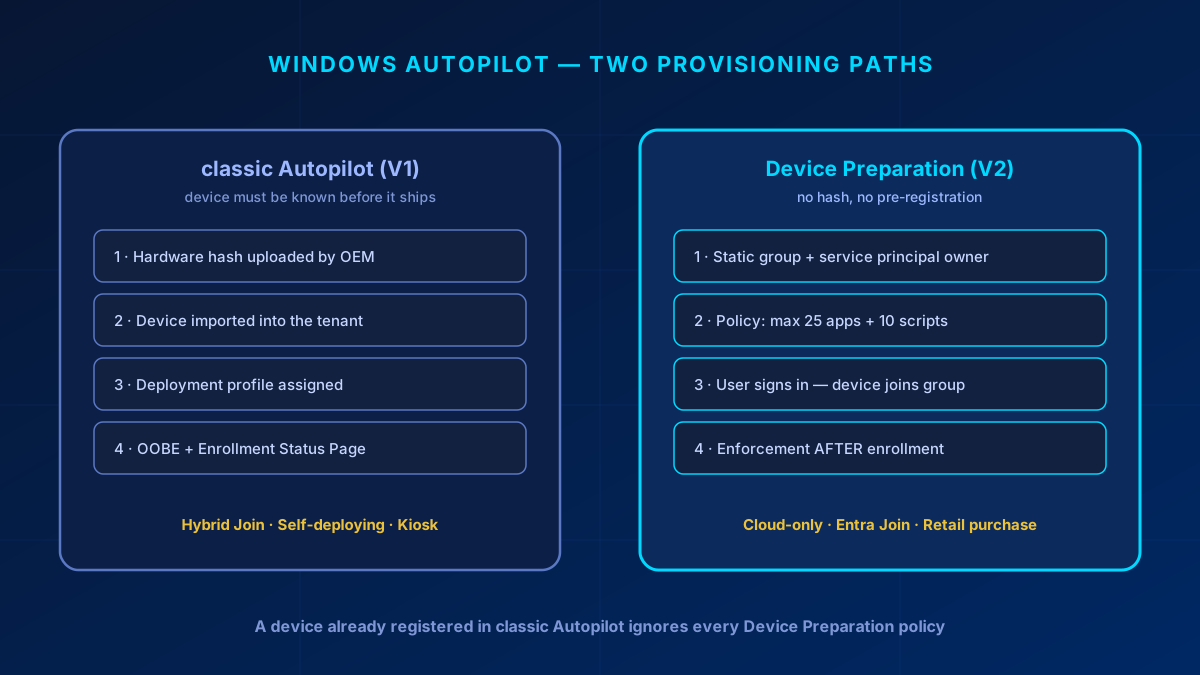
Windows Autopilot now has two provisioning models that look similar from the outside and behave nothing alike underneath. The older one — what practitioners call V1, officially just Windows Autopilot — needs to know a device before it ships: the hardware hash goes into your tenant, the device is matched to a deployment profile, and provisioning happens from there. Device Preparation, the newer model people call V2, needs none of that. Take a laptop out of a retail box, sign in, and it provisions.
That difference decides your entire procurement process, so getting the choice right matters more than getting either one perfectly configured. This is the practitioner version: when each applies, how to set both up, and the specific things that break rollouts.
In short
Hybrid Join, self-deploying or kiosk → classic Autopilot. There is no alternative. Cloud-only, Entra Join, user-driven → Device Preparation. Windows 365 → Device Preparation in automatic mode, which is still public preview. The decision is made per customer and documented, not defaulted across a fleet. The single most common V2 failure: the Intune Provisioning Client service principal is not an owner of the enrollment-time group, so devices never join it and everything targeted at that group misses the deployment. And on a device already registered in classic Autopilot, what decides is the association state: unassociated means the classic profile wins.
Choosing between the two
The decision tree is short, and the first branch is absolute.
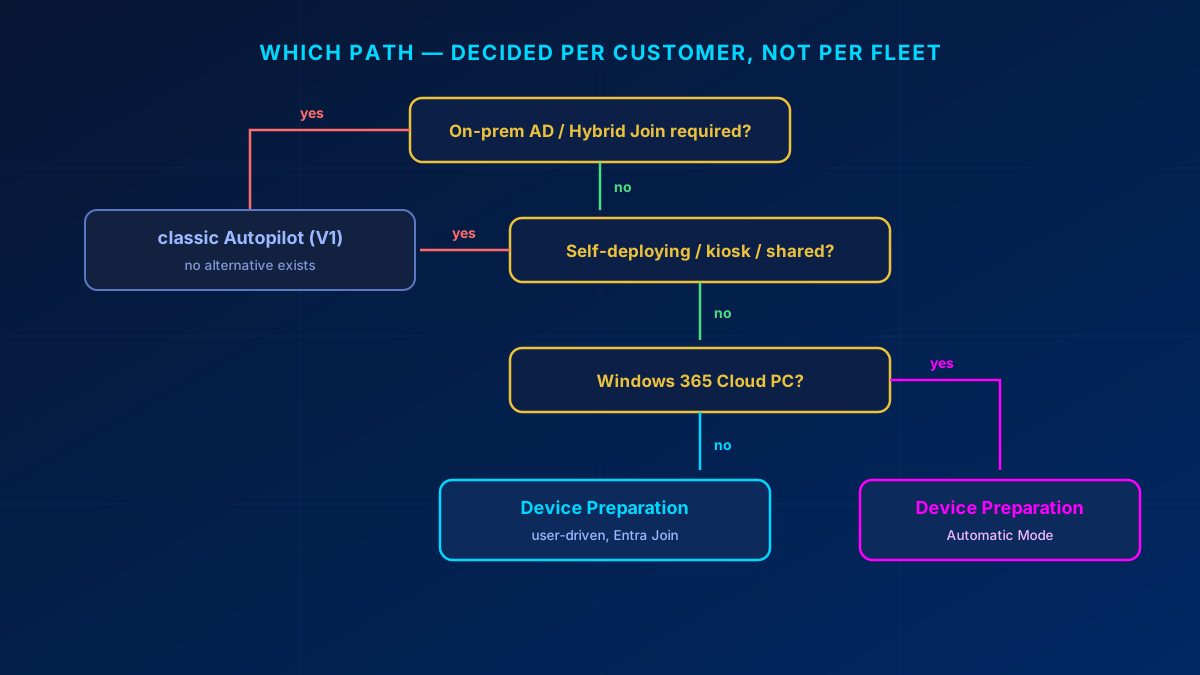
- Hybrid Entra Join (on-prem AD) → classic Autopilot. Device Preparation does not do hybrid join at all, so there is nothing to weigh on this branch.
- Self-deploying, kiosk or shared devices (no user assignment) → classic Autopilot.
- Cloud-only, Entra Joined, user-driven → Device Preparation.
- Windows 365 Cloud PCs → Device Preparation in automatic mode. Check the preview status before promising it: Microsoft put automatic mode for Windows 365 Enterprise, Frontline in dedicated mode and Cloud Apps into public preview in November 2025.
Mixed fleets are legitimate. Picking one model as a house default and applying it to every tenant without checking the join type first is how this goes wrong.
A device already registered in classic Autopilot does not automatically ignore a Device Preparation policy. What decides is the device's association state: if the device is not associated with the tenant, the classic Autopilot profile takes precedence; if it is associated, device association wins and the Device Preparation deployment runs. So before a V2 rollout on existing or second-hand hardware you have two routes: associate the device, or deregister it from classic Autopilot. Doing neither is what produces the failure that looks like "the policy just does not apply."
classic Autopilot (V1) end to end
Getting hardware hashes
The standard path is the only one that scales: build the OEM or distributor relationship, register your tenant ID at purchase, and hashes get uploaded into the tenant before the hardware ships. Dell, HP, Lenovo and the large distributors all support this.
The exception path — lab work, a one-off device — is running the script locally as administrator:
[Net.ServicePointManager]::SecurityProtocol = [Net.SecurityProtocolType]::Tls12
Set-ExecutionPolicy -Scope Process -ExecutionPolicy RemoteSigned
Install-Script -Name Get-WindowsAutopilotInfo -Force
Get-WindowsAutopilotInfo -Online
The first three lines are the part people skip and then wonder why nothing runs on a fresh device: the script is not installed and the execution policy blocks it. -Online uploads the hash directly and prompts for a sign-in with at least Intune Administrator rights. Drop -Online if you want a CSV instead; the file lands in C:\HWID\AutopilotHWID.csv.
Manual extraction is error-prone and should never become the routine process. Microsoft says the same in stronger terms: registration via the 4K hardware hash is recommended "only for testing or other limited scenarios", partly because the hash carries sensitive information, and points at the Partner Center for the normal case. If you find yourself doing this at volume, the procurement channel is the actual problem.
Import and profile
Import under Devices → Enrollment → Windows Autopilot Devices → Import. The import itself takes several minutes; then run Sync and refresh until the devices appear, rather than assuming the upload failed. Three things about the CSV: at most 500 devices per file, plain ANSI text with no quotation marks, and never edited in Excel. Excel does not produce a file Intune can import.
Then Deployment Profiles → Create profile, with the settings that matter:
- Deployment mode: user-driven (standard) or self-deploying for kiosk and shared devices
- Join type: Microsoft Entra Joined by default; Hybrid Entra Joined only where on-prem AD genuinely requires it
- Privacy settings: hide
- User account type: standard user, with local admin rights only by documented exception
- Device naming template: customer prefix plus a random suffix
Assignment, apps, provisioning
- Assign the profile to a device group or group tag. Never leave it unassigned. A registered device without an assigned profile does not fail; Microsoft applies the default Windows Autopilot profile by design, so that every registered device goes through the Autopilot experience. The device provisions into whatever that default happens to be, which is almost never what the customer ordered.
- Deploy apps via Apps → Windows → Add (M365 Apps, Defender, line-of-business).
- Configure the Enrollment Status Page: which apps block, the timeout, and what happens on failure.
- Power on. The user signs in with Entra credentials, completes MFA and Windows Hello, and the device joins, enrolls, applies the profile and installs apps.
Device Preparation (V2) end to end
The differences from V1 are the whole point, so this is where the detail belongs.
No pre-registration, but a build requirement
There are no hardware hashes and no import step. In exchange there is a floor on the OS: Windows 11 24H2, or 22H2/23H2 with KB5035942 installed. A device below that will not provision, and the failure is not always obvious from the error.
Enrollment Time Grouping — and the service principal
Device Preparation writes the device into a static security group during enrollment. Two things about that group cause most of the support tickets:
- It must be static: Membership type Assigned, one group per enrollment policy. A dynamic group does not work here.
- The service principal Intune Provisioning Client (AppId
f1346770-5b25-470b-88bd-d5744ab7952c) must be an owner of that group. In some tenants the same service principal is called Intune Autopilot ConfidentialClient — the AppId is what identifies it. To set the owner you either own the group already or hold a role carryingmicrosoft.directory/groups/owners/update, which means Groups Administrator or User Administrator.
That second point is, by a wide margin, the most common cause of a failed V2 setup, and it does not announce itself. The device never becomes a member of the group, so every app, script and policy targeted at that group misses the deployment. Microsoft documents the symptom rather than an error at save time: Devices → Monitor → Enrollment time grouping failures lists exactly the devices that failed to join their static group. Watch that report continuously. A device that misses the group can lose configuration again after enrollment.
Limits and identifiers
- Up to 25 apps and 10 PowerShell scripts are tracked during setup. Microsoft raised the app limit from 10 to 25 in January 2026, for user-driven and automatic mode alike — and flagged the catch in the same breath: review your deployment timeout, because 25 blocking apps take longer than 10. Anything beyond the limit installs afterwards, outside the provisioning experience.
- Upload corporate identifiers (manufacturer, model, serial number) when enrollment restrictions block personal devices. Recommendation: do it always, not only when required. It costs nothing and prevents a class of enrollment rejection that is tedious to diagnose.
Policies sync, but nothing blocks the desktop
This is the architectural difference that catches people. Device Preparation syncs the policies assigned to the device group, but it does not track whether they were applied; Microsoft documents that they might land during the deployment or after it completes. Nothing holds the desktop back while that settles, and there is no user-phase equivalent of the Enrollment Status Page. So Conditional Access and compliance policies have to be in place before the rollout, and they have to tolerate the window in which a brand-new device cannot yet be compliant. A "require compliant device" policy with no allowance for enrollment will block the very process meant to make the device compliant.
What to decide and document per customer
- V1 or V2, and the reason
- Procurement path: distributor with hash upload, or retail / user-purchased
- Deployment mode: user-driven or self-deploying
- Join type: Entra Joined or Hybrid (V1 only)
- Device naming convention
- Group tag strategy for segmented rollouts (V1)
- Enrollment Status Page and timeout configuration (V1 only — Device Preparation does not use the ESP)
- App and policy baseline for day one
- Any exceptions granted for local administrator rights
Verification
A rollout is not done until a test device passes all of this:
- OOBE completes without manual intervention beyond entering credentials
- The device appears under Devices → All devices as a corporate device with the correct name
- V1: the Enrollment Status Page runs to completion. V2: the deployment report shows every app and script as Installed. The other three statuses are the diagnosis: In progress, Failed, and Skipped, where Skipped almost always means the app or script was picked in the policy but never assigned to the device group named in that same policy
- V2: the device landed automatically in the enrollment-time group
- Assigned apps are installed, though status messages may lag behind reality
- The device evaluates as compliant and Conditional Access applies correctly
- Join type matches the specification
- No device carries unintended local administrator rights
Pitfalls that actually cost you a day
Device Preparation:
- Missing service principal owner → the device never joins the group, and everything targeted at that group misses the deployment. Check this first, always, and watch Devices → Monitor → Enrollment time grouping failures.
- Dynamic instead of static group → the group has to be Membership type Assigned.
- Device registered in classic Autopilot and not associated with the tenant → the classic profile wins and the V2 policy never applies. Associate the device or deregister it. A quick tell during OOBE: if the Enrollment Status Page appears at all, the device is running classic Autopilot. Device Preparation does not use the ESP.
- Known issue — local admin: policy set to Standard user combined with the Entra Local administrator settings option "Registering user is added as local administrator on the device during Microsoft Entra join" set to Selected or None causes provisioning to be skipped entirely. Users reach the desktop without the apps. The documented fix is counter-intuitive: of the three combinations Microsoft lists that leave the user a standard non-administrator, two require the policy's User account type to be set to Administrator, and only the third (Entra set to All) uses Standard user. Read both settings before you decide which one to change.
classic Autopilot:
- Missing profile assignment → the device still runs Autopilot, on the default profile, and lands in a configuration nobody chose. Check the assignment before the device ships.
- Manual hash extraction as the routine process → does not scale, high error rate.
- Admin rights silently not granted on hybrid join → in user-driven hybrid Entra join the user does not become a local administrator even when the Autopilot profile says so, if another account on the device already holds admin rights. A script or policy that creates a second local admin account during provisioning is enough to trigger it, so do not create that account until Autopilot has finished.
- A "dirty" tenant: stale registrations, duplicate hashes. Audit tenant state before a batch onboarding.
Both:
- Apps assigned to the wrong target → in Device Preparation they show as Skipped in the deployment report, because the app was named in the policy but not assigned to the policy's device group. Check the assignment target and whether the app or script installs in the System context. During OOBE no user is signed in.
- A Conditional Access policy blocking enrollment. "Device compliance required" collides with the moment the device cannot yet be compliant.
- No internet on first boot → provisioning simply stops.
- The visibility gap: customers consistently overestimate how many of the devices touching company data are actually managed. Inventory before the rollout instead of assuming full coverage.
- Terminology: "V1" and "V2" are community shorthand. Use the official names — Windows Autopilot and Windows Autopilot device preparation — in customer-facing documents.
Bottom line
Device Preparation removes the part of Autopilot that was hardest to operate at scale: knowing every device before it ships. That makes retail and user-purchased hardware viable for the first time. It does not remove hybrid join constraints, it does not cover self-deploying scenarios, and it introduces its own single point of failure in the enrollment-time group. Pick per customer, check the group owner before anything else, and for any device still carrying a classic Autopilot registration, decide deliberately whether to associate it or deregister it.
Zero Trust. Zero Drama. Zero Bullshit.
Deciding between classic Autopilot and Device Preparation for a customer fleet, or stuck on an enrollment-time group that devices never join?
I do this work in SMB tenants every week.
Glossary
- Windows Autopilot (classic, "V1")
- The original model: the device's hardware hash is registered in the tenant before provisioning, and a deployment profile drives the out-of-box experience.
- Windows Autopilot device preparation ("V2")
- The newer model requiring no pre-registration or hardware hash. Cloud-only and Entra Join, with enforcement applied after enrollment.
- Hardware hash
- A device-unique identifier collected from firmware and uploaded to the tenant so classic Autopilot can recognise the device before first boot.
- Enrollment Time Grouping
- The static security group Device Preparation writes the device into during enrollment. Must be static, and must have the Intune Provisioning Client service principal as owner.
- Intune Provisioning Client
- The service principal (AppId f1346770-5b25-470b-88bd-d5744ab7952c) that must own the enrollment-time group; in some tenants it is named Intune Autopilot ConfidentialClient. Without that ownership the device never joins the group, and the failures show up under Devices → Monitor → Enrollment time grouping failures.
- Enrollment Status Page (ESP)
- The classic-Autopilot screen that blocks sign-in until specified apps and policies have applied, with configurable timeout and failure behaviour.
- Corporate identifiers
- Manufacturer, model and serial number uploaded to Intune so enrollment restrictions can distinguish corporate hardware from personal devices.
- Group tag
- A label on a classic Autopilot device record used to target different deployment profiles at segments of a fleet.
Frequently Asked Questions
What is the difference between Autopilot V1 and V2?
classic Autopilot (V1) requires the device's hardware hash to be registered in the tenant before provisioning and supports hybrid join, self-deploying and kiosk scenarios. Device Preparation (V2) needs no pre-registration or hash, supports Microsoft Entra join only, and covers two flows: user-driven for physical devices and automatic mode for Windows 365 Cloud PCs, the latter still in public preview. It applies enforcement after enrollment rather than before.
When must I still use classic Autopilot?
Whenever Hybrid Entra Join is required, because Device Preparation does not support hybrid join at all, and for self-deploying, kiosk or shared-device scenarios with no user assignment. Both are hard constraints.
Why do devices never land in my Device Preparation enrollment-time group?
Almost always because the Intune Provisioning Client service principal (AppId f1346770-5b25-470b-88bd-d5744ab7952c) is not an owner of the enrollment-time security group. Add it as an owner, and confirm the group is static rather than dynamic. Devices > Monitor > Enrollment time grouping failures lists the devices that failed to join.
Why is my Device Preparation policy not applying to a device?
Check whether the device is registered in classic Autopilot and not associated with the tenant — in that state the classic profile takes precedence and the Device Preparation policy never applies. Associate the device, or deregister it from Autopilot. Also verify the build: Windows 11 24H2, or 22H2/23H2 with KB5035942.
How many apps can Device Preparation install during setup?
Up to 25 apps and 10 PowerShell scripts are tracked during the provisioning experience — Microsoft raised the app limit from 10 to 25 in January 2026. Anything beyond that installs afterwards, so put day-one essentials inside the limit and review your deployment timeout, because 25 blocking apps take longer than 10.
Do I need hardware hashes for Windows Autopilot device preparation?
No. Device Preparation requires no hardware hash and no pre-registration, which is what makes retail and user-purchased devices viable. Corporate identifiers are still recommended where enrollment restrictions block personal devices.
References
- Microsoft Learn: Overview of Windows Autopilot device preparation
- Microsoft Learn: Windows Autopilot device preparation requirements
- Microsoft Learn: Device preparation troubleshooting FAQ
- Microsoft Learn: Windows Autopilot device preparation known issues
- Microsoft Learn: Windows Autopilot overview
- Microsoft Learn: Windows Autopilot known issues
- Microsoft Learn: Compare Windows Autopilot device preparation and Windows Autopilot
- Microsoft Learn: Enrollment time grouping in Microsoft Intune
- Microsoft Learn: Manually register devices with Windows Autopilot