

Windows Autopilot deployment replaces manual imaging with zero-touch provisioning — everything an SME needs to get started. Picture a fresh batch of 50 laptops arriving for new hires. Instead of days of unboxing, imaging, and configuring, each device configures itself — directly at the end user's desk, without your IT team ever touching it. Autopilot makes that real by combining Intune, Entra ID, and manufacturer-level hardware registration into a single cloud-driven workflow.
That is the promise of Windows Autopilot. It is not a single piece of software but a cloud-based approach that fundamentally changes how organizations deploy Windows devices. Forget traditional imaging. With Autopilot, new devices ship directly from the manufacturer to the employee. The user unboxes it, connects to the internet, enters their credentials, and watches as the laptop automatically configures itself with all required apps, settings, and security policies. For IT, that means zero effort and full control — simultaneously. Yes, really.
Zero touch Windows deployment is not a buzzword. It is what happens when you stop pretending that manually imaging 50 laptops is a good use of your team's time.
Two Roads to the Same Destination: Autopilot v1 vs. v2

Since its introduction, Autopilot has evolved. Today we stand at an important fork in the road: two variants exist side by side — the classic version (v1) and the new "Device Preparation" (v2). The choice between them is a strategic decision, not just a technical one.
One naming note before we go on: Microsoft does not version these as v1 and v2. The official names are Windows Autopilot for the original, registration-based solution and Windows Autopilot device preparation for the re-architected one. I use v1 and v2 here as shorthand — search Learn for the official names.
The Proven Classic (Autopilot v1): Maximum Control and Compatibility
How it works: Each device must be pre-registered in your tenant. In the normal case you never touch a hash: the OEM, reseller, distributor, or CSP partner registers the device on your behalf, once a Global Administrator has authorized them to do so. Uploading the unique "digital fingerprint" — the hardware hash — yourself is the fallback, and Microsoft positions it that way: for devices from vendors that do not participate, for virtual machines, and for testing. When the device starts, it checks in with Microsoft, gets recognized, and receives its assigned configuration profile.
When this is your path: Whenever you have a mixed environment of Windows 10 and Windows 11, or need Microsoft Entra hybrid join for legacy workloads that still depend on on-premises Active Directory. v1 is the Swiss Army knife for complex scenarios and offers the greatest flexibility — including repurposing existing devices. It also supports up to 100 applications during provisioning and advanced customization of the out-of-box experience.
One caveat on hybrid join: Microsoft recommends deploying new devices cloud-native via Microsoft Entra join and advises against provisioning new devices as Microsoft Entra hybrid join, including through Autopilot. Treat hybrid join as a migration bridge for what you already have, not as the target state for what you buy next.
The trade-off: The process requires more administrative overhead since every device must be individually registered. Not exactly thrilling work, but it gets the job done.
The Modern Sprinter (Autopilot v2 — Device Preparation): Radically Simple and Fast
How it works: Pre-registration is completely eliminated. You define a policy for a user group. As soon as a new Windows 11 device belonging to a member of that group is started, the process kicks in automatically. No hardware hashes and no mandatory pre-staging. Microsoft has since added an optional device association step that binds physical devices to your tenant before enrollment — it needs Windows 11 24H2 or 25H2 with KB5120998 and TPM 2.0 attestation, and it stays optional.
When this is your path: When you are running a pure cloud strategy on a current Windows 11 build and want the simplest, fastest, and most scalable solution for large device rollouts. For standard new-hire laptop deployments, this is the gold standard. Near real-time monitoring is also included — a feature v1 still lacks.
Check the build before you plan the rollout: Device preparation needs Windows 11 version 24H2 or later, or version 23H2 or 22H2 with KB5035942 (March 26, 2024) installed. Installation media dated April 2024 or later already contains that update. Verify with your OEM that the devices you ordered ship at that patch level — below it, device preparation simply does not run, and the failure is silent.
The limitation: This path works only with Windows 11 and pure cloud connectivity (Microsoft Entra ID). Hybrid scenarios are excluded, the maximum number of apps during provisioning is currently 25, and you get at most 10 PowerShell scripts during the out-of-box experience. Beyond user-driven deployments, device preparation adds one more flow — an automatic mode that provisions Windows 365 Cloud PCs at creation. Self-deploying and pre-provisioning for physical devices remain v1 territory.
Who Is the Device For? The Two Core Deployment Scenarios
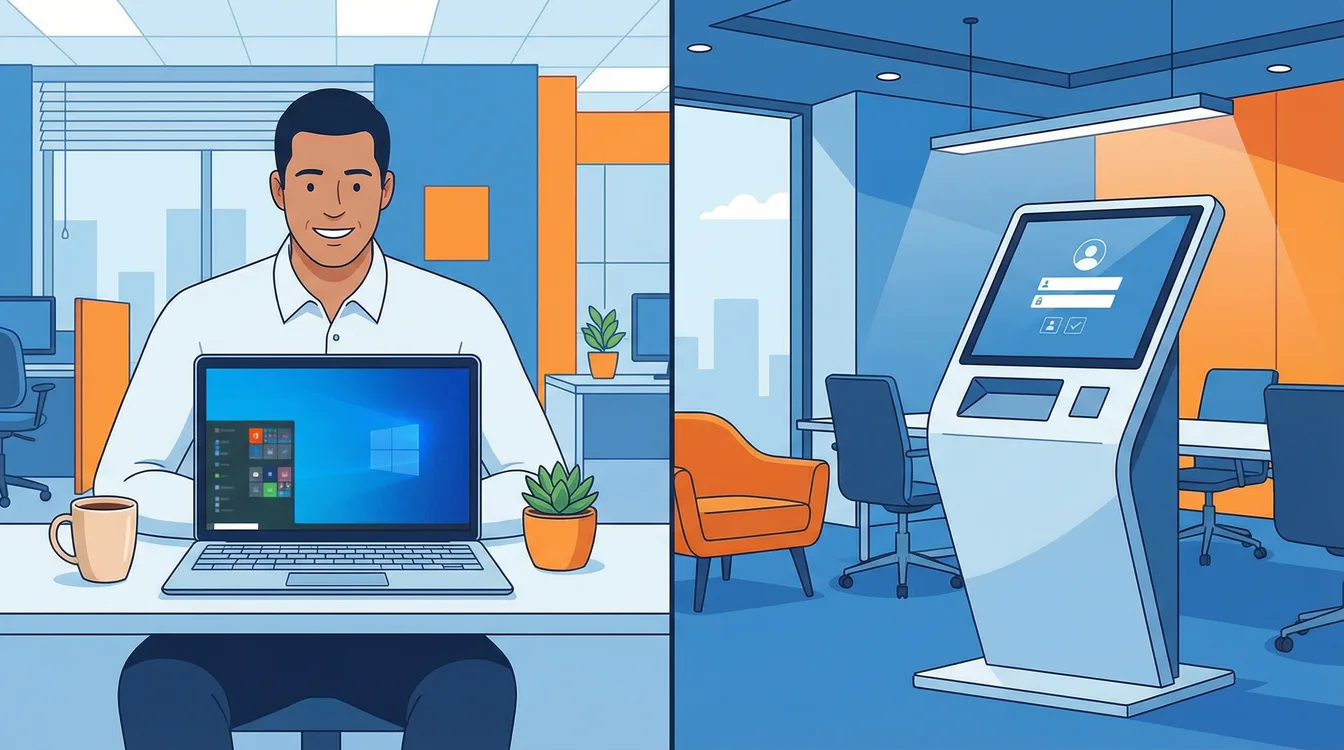
Beyond the choice of technology (v1 or v2), the critical question is: who will use the device? This determines which deployment mode to use.
User-Driven Mode (For the Personal Desk)
This is the standard case. An employee receives their personal device, signs in with their account, and Autopilot ensures that both device-level and user-specific settings and apps are installed. Perfect for the 1-to-1 device in the office or home office. Supported by both v1 and v2.
The Enrollment Status Page belongs to v1 only. In Windows Autopilot, the ESP shows provisioning progress and can block device use until required apps and policies are installed. Device preparation does not use the ESP at all — it shows a "Setting up for work or school" progress window instead. If you do see the ESP during what you believe is a device preparation deployment, that device is still Autopilot-registered or has an Autopilot profile assigned, and that profile takes precedence over your device preparation policy.
Self-Deploying Mode (For Shared Use)
Imagine a kiosk terminal, a device in a conference room, or a shared workstation. There is no fixed user. In this mode, the device configures itself completely without any user sign-in. It starts, sets itself up, and lands directly on the login screen — ready for anyone with the right permissions. Important: this mode is currently only supported by Autopilot v1.
Two hardware facts decide whether this works at all. Self-deploying mode authenticates the device through TPM 2.0 and TPM device attestation, so devices without TPM 2.0 — virtual machines and Hyper-V vTPMs included — fail with error 0x800705B4. And a device deployed this way cannot re-enroll automatically: delete its record in Intune first, or the next run fails.
Your Checklist for the Right Autopilot Strategy

Before any of this: check that you are licensed for it. Autopilot needs Microsoft Entra ID and an MDM service, which in practice means Microsoft 365 Business Premium, Microsoft 365 E3 or E5, Microsoft 365 F1 or F3, Enterprise Mobility + Security E3 or E5, or Microsoft Entra ID P1/P2 plus an Intune subscription — and the licenses have to be assigned to the users who enroll the devices, not just bought.
The decision for the right approach depends on your infrastructure and goals. Here is a simple decision guide:
| If you need… | Your solution is… |
|---|---|
| Windows 10 devices or a hybrid environment | Autopilot v1 |
| Kiosk systems or shared devices | Self-Deploying Mode (with v1) |
| A pure Windows 11 cloud environment | Autopilot v2 (Device Preparation) |
| The fastest and simplest process for new hires | User-Driven Mode (with v2) |
| More than 25 apps deployed during provisioning | Autopilot v1 |
| Near real-time deployment monitoring | Autopilot v2 (Device Preparation) |
The Road Ahead

Windows Autopilot is more than just a tool — it is a strategic shift toward modern, efficient device management. It frees your IT team from repetitive tasks and gives back the time to focus on what truly matters: strategic projects that move the business forward.
Ready to leave the setup chaos behind? Start by analyzing your current device landscape and define which of the scenarios described here fits best. That is the first step toward an IT infrastructure that simply works — without the drama, without the cardboard mountain, and without the spilled coffee.
Zero Trust. Zero Drama. Zero Bullshit.
Autopilot handles provisioning, but the devices it deploys still need guardrails. Pair it with Intune enrollment restrictions to keep personal devices out of the management plane, and with Intune app protection policies (MAM) to secure data on mobile devices that fall outside the Autopilot workflow.
Autopilot is one piece of a broader Zero Trust in Microsoft 365 strategy. Want to find out which Autopilot strategy fits your environment? Visit easym365.de.
Frequently Asked Questions
What is Windows Autopilot?
Windows Autopilot is a cloud-based deployment method that configures new Windows devices automatically. Devices ship directly from the manufacturer to the employee, who signs in and watches the device set itself up with apps, settings, and security policies — no IT imaging required. It's the modern alternative to traditional imaging.
What's the difference between Autopilot user-driven and self-deploying mode?
User-driven mode is for personal devices: the employee signs in and receives both device and user settings. Self-deploying mode is for shared devices like kiosks or conference rooms — the device configures itself with no user sign-in. User-driven works in v1 and v2; self-deploying is currently v1 only.
What is the Enrollment Status Page in Autopilot?
The Enrollment Status Page (ESP) shows provisioning progress during Windows Autopilot setup and can block device use until required apps and policies are installed. It ensures a device reaches a known, compliant state before the user starts working. It belongs to Windows Autopilot only — Windows Autopilot device preparation does not use the ESP and shows a "Setting up for work or school" window instead.
Autopilot v1 or v2 — which should I use?
Use v1 for Windows 10, Microsoft Entra hybrid join, self-deploying/kiosk scenarios, or more than 25 apps during provisioning. Use v2 (Device Preparation) for a pure Windows 11 cloud environment on version 24H2 or later — or 23H2/22H2 with KB5035942 — and the fastest new-hire rollouts with near real-time monitoring.