
Categories: Microsoft Defender for Endpoint | Entra ID | Troubleshooting
The Problem
When setting up a third-party integration or granting admin consent, you might suddenly encounter this error:
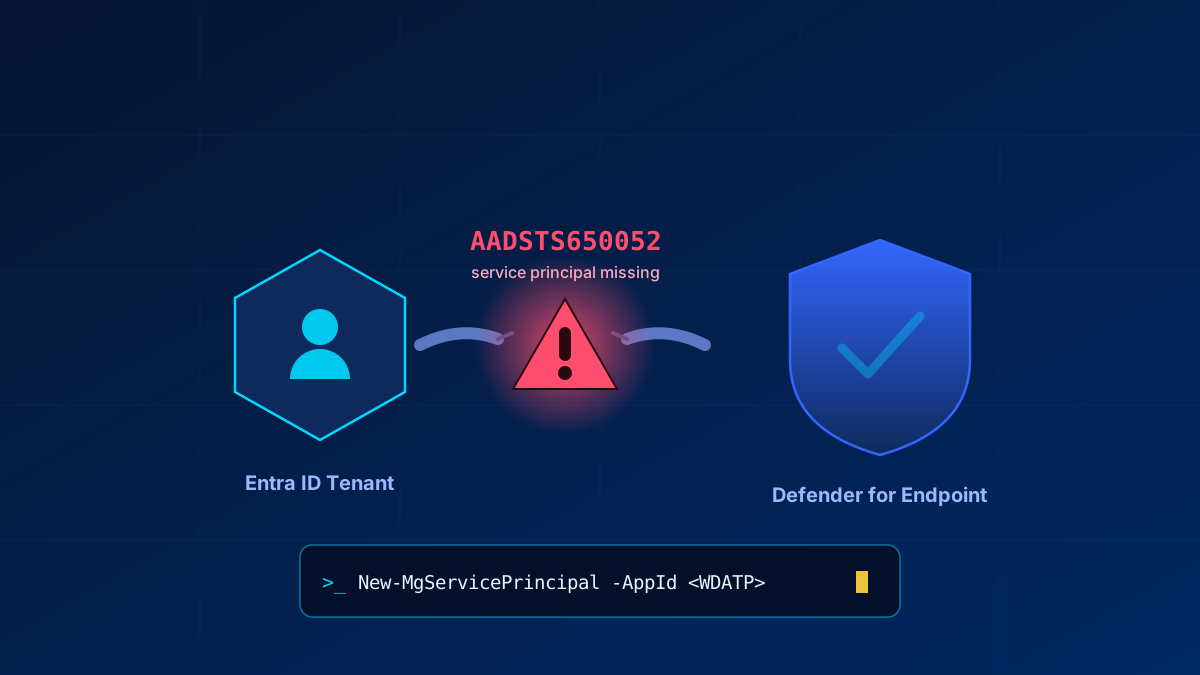
AADSTS650052: The app is trying to access a service 'fc780465-2017-40d4-a0c5-307022471b92' (WindowsDefenderATP) that your organization lacks a service principal for.
That is the wording I saw in the browser. Microsoft documents the message for this code more generically: "The app needs access to a service ("{name}") that your organization "{organization}" hasn't subscribed to or enabled." Error texts change, the code does not — go by AADSTS650052. And it is confusing either way: your tenant has an E5 license, Defender is active, and everything should technically be correct.
The Cause
What Microsoft does document is the mechanism: consent fails when no service principal representing the target resource application exists in the tenant, and the fix is to provision one. The rest of this section is what I have consistently seen in my own tenants, not documented Microsoft behaviour — treat it as field notes.
The Service Principal for WindowsDefenderATP (fc780465-2017-40d4-a0c5-307022471b92) is not created when you assign the license. In the tenants I have worked in, it appeared on the first visit to security.microsoft.com—but that trigger did not fire reliably.
Important note for E5 Developer Tenants: The Security Portal might already be loading fine, yet the Service Principal is still missing. In my experience the automatic provisioning frequently fails for Dev Tenants, even if Defender for Endpoint appears active and the portal loads normally. In that case, create the Service Principal manually.
Scenarios I have seen this in:
- E5 Developer Tenants: Portal-based auto-provisioning often fails completely.
- New Production Tenants: Environments where
security.microsoft.comhas never been opened. - Accidental Deletion: Tenants that recently underwent a Service Principal cleanup.
Fix 1 – The Portal Method (For Production Tenants)
Open security.microsoft.com using a Global Admin account. In regular production tenants that has been enough for me: the Service Principal was there after the first visit. Once the portal loads, try the consent flow again.
⚠️ Note: If you are using an E5 Dev Tenant, this often doesn't work. Skip directly to Fix 2.
Fix 2 – PowerShell via Microsoft Graph (Most Reliable Method)
The most robust way to resolve this issue is by manually creating the missing Service Principal using Microsoft Graph PowerShell. You do not need Global Administrator for this: Cloud Application Administrator or Application Administrator is enough to create a service principal.
# Install the Microsoft Graph module if not already present
Install-Module Microsoft.Graph -Scope CurrentUser -Force

# Connect to the affected tenant
Connect-MgGraph -Scopes "Application.ReadWrite.All" -TenantId "<TenantId>"

# Create the Service Principal for WindowsDefenderATP
New-MgServicePrincipal -AppId "fc780465-2017-40d4-a0c5-307022471b92"
A successful output will look like this:
DisplayName        Id                                   AppId
-----------        --                                   -----
WindowsDefenderATP 6cbf883d-...                         fc780465-2017-40d4-a0c5-307022471b92
After running this, repeat your consent flow—you are done.
Verification
To double-check if the Service Principal exists, run the following command. It also confirms that the app ID really is the one you want — Microsoft does not publish this GUID in the articles covering this error, so verify the display name rather than trusting the number:
Get-MgServicePrincipal -Filter "appId eq 'fc780465-2017-40d4-a0c5-307022471b92'" | Select-Object DisplayName, AppIdIf the command returns an entry and the DisplayName reads WindowsDefenderATP, the Service Principal is present and correct. If the output is empty, the Service Principal is still missing. You can also confirm the resource name the other way round: in the Entra admin center, under APIs my organization uses, search for "WindowsDefenderATP" — Microsoft documents that path, and the app does not appear in the default API list.
Time-Consuming Pitfalls to Avoid
The first three are field observations from my own tenants, not documented Microsoft behaviour. The last one is documented.
- Graph Explorer was unreliable for this fix: The token session frequently dropped when I attempted it, even with a correct login. Stick to the PowerShell module.
- Adminconsent URLs don't create the SP: In my tenants the admin consent URL only worked after the Service Principal already existed. It is not a workaround for provisioning it.
- E5 Developer Tenants behave differently: As mentioned, portal provisioning did not reliably trigger for Dev Tenants compared to production E5 tenants.
- Conditional Access blockers: Conditional Access policies can block the Device Code Flow. Using an interactive browser login via
Connect-MgGraphis much more stable.
Zero Trust. Zero Drama. Zero Bullshit.
Call to Action
Need help streamlining your Microsoft 365 security, configuring Defender, or troubleshooting complex Entra ID issues? Visit https://easym365.de for expert consulting and hands-on support. Let's build a secure foundation together.