
CxO Summary: Why This Matters for Your Organization
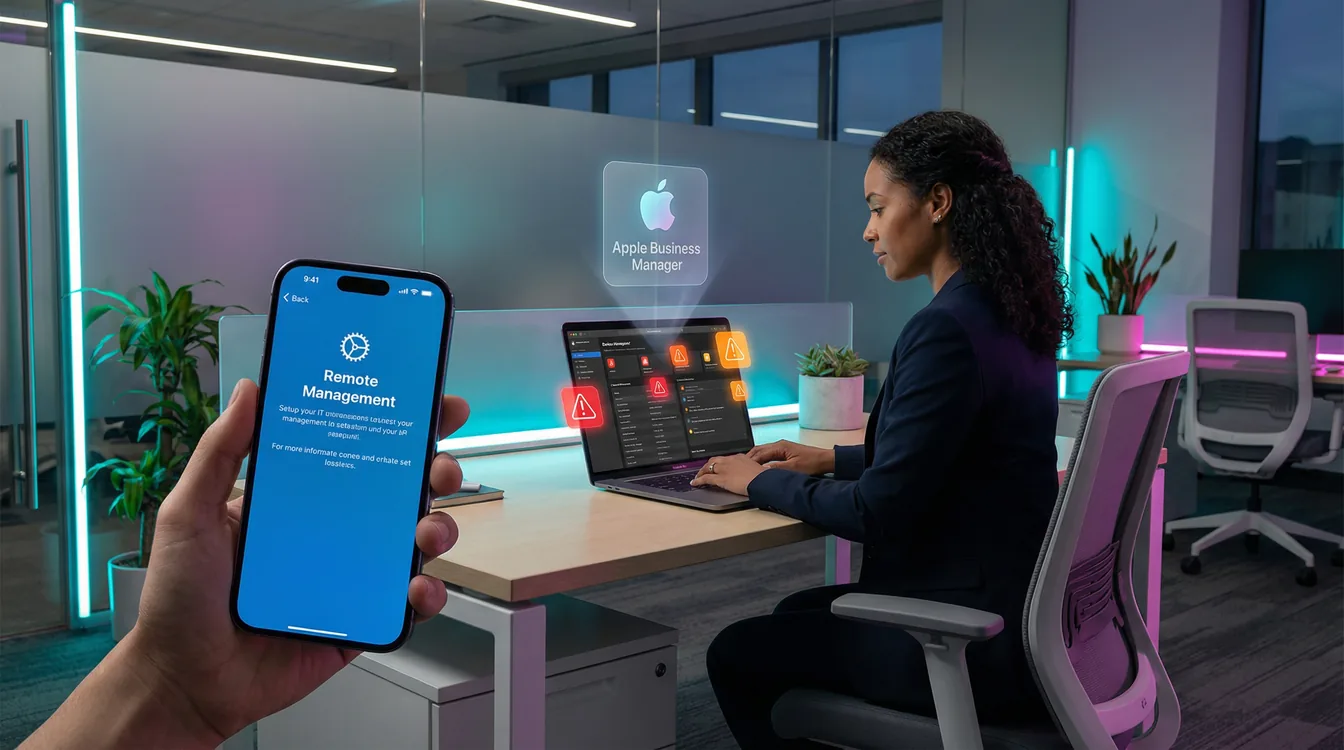
An iOS ABM enrollment that shows "Not Contacted" in Intune means the device never completed its check-in with Apple's Device Enrollment Program servers — and every security policy you configured is sitting idle. Managing Apple devices with Intune requires a correct enrollment sequence; when corporate iOS or iPadOS devices fail to enroll properly via Apple Business Manager, the organization faces compliance gaps, data exposure, and hours of wasted IT effort. This article explains the root cause and the fix.
Business Impact
- Security Gaps: Unsupervised devices support a smaller set of controls. A long list of Intune device restrictions is marked supervised only — blocking the App Store, blocking the camera, Safari password domains and similar — while passcode and encryption settings, compliance policies and app protection policies (MAM data loss prevention) also apply to unsupervised and even unenrolled devices. Supervision widens the control surface; it is not the on/off switch for security.
- Compliance Risks: Devices showing a "Not Contacted" status are not managed, which can create gaps in your device-hardening evidence when an audit asks for it.
- Operational Overhead: IT teams waste valuable hours troubleshooting individual enrollment issues instead of focusing on strategic initiatives.
- User Productivity Loss: Employees cannot access corporate resources like email, apps, and files until their device enrollment is successfully resolved.
Risk Mitigation Value
Proper ABM enrollment with device supervision is a cornerstone of a modern, secure endpoint strategy. It enables:
- Conditional Access Enforcement: Ensures that only compliant devices can access Microsoft 365, SharePoint, and other corporate applications.
- Zero Trust Alignment: Makes device health attestation a key part of your identity and access control strategy.
- Automated Compliance: Policies are deployed automatically, reducing human error and ensuring consistent security posture.
ROI Context
These are my own numbers from the field, not a Microsoft figure. In the tenants I have worked in, manual troubleshooting for a single device takes two to four hours of an administrator's time, while a properly configured automated ABM setup takes roughly 15 minutes per device. For a fleet of 100 devices, that is 200 to 400 hours — measure it in your own environment before you put it in a business case.
The Problem: Symptoms and Initial Observations
When an iOS/iPadOS device fails to enroll correctly through ABM, the symptoms in the Microsoft Intune admin center are consistent and clear. The device appears, but it remains in a non-functional, unmanaged state.
What You See in Intune
Navigating to Devices > iOS/iPadOS > [Device Name], you'll observe the following properties:
| Property | Observed Value | Expected Value |
|---|---|---|
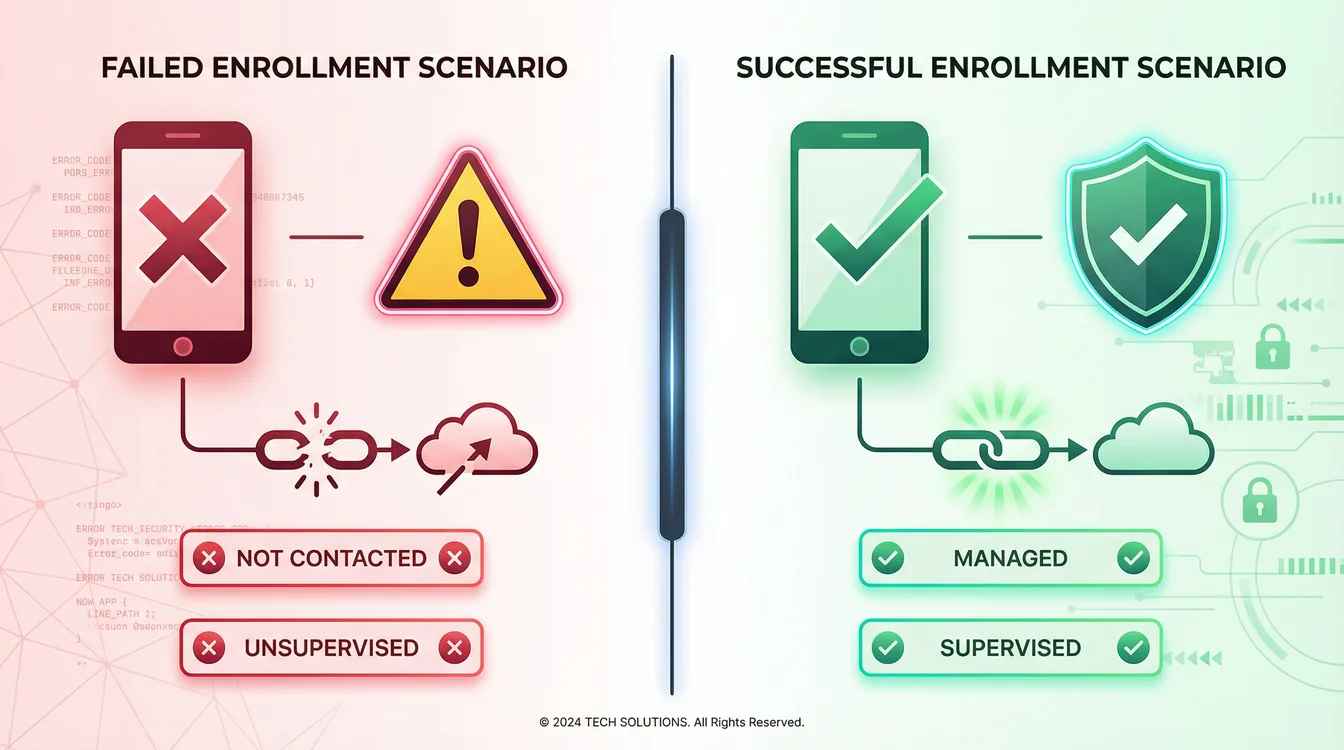
| Status | Not contacted | Managed / Compliant |
| Last contacted | Never | Recent timestamp |
| Supervised | No | Yes |
| Enrollment type | Empty or "User Enrollment" | "Automated Device Enrollment" |
| Management state | Unmanaged | Managed |
Critical Observation
Despite verifying that the enrollment policy in Intune is correctly configured and assigned, the device never retrieves it during the Setup Assistant. This is the central clue to understanding the root cause.
Root Cause: How Post-Activation Enrollment Breaks the Flow
The issue stems from a fundamental misunderstanding of how Apple's Automated Device Enrollment (formerly DEP) works. The problem is not with Intune or ABM, but with the sequence of events during the device's initial activation.
The Critical Sequence Problem
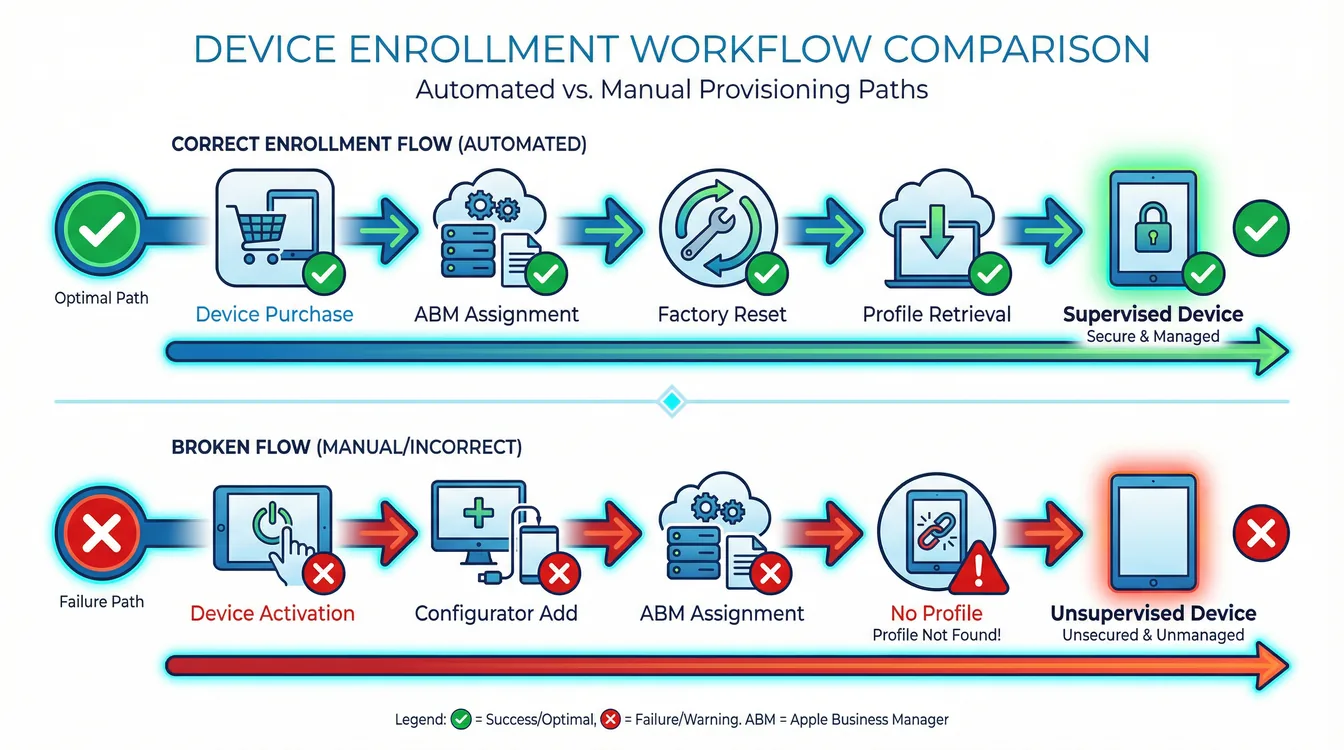
Here's what typically happened:
- The device was activated and set up before being added to Apple Business Manager.
- After activation, Apple Configurator was used to manually add the device to ABM.
- The device was then correctly assigned to the Intune MDM server in ABM and synced.
- The user attempts to enroll, but the device bypasses the mandatory ABM enrollment profile.
Why This Breaks Enrollment
Apple's enrollment logic is tied to the device's very first boot sequence:
- When a new (or factory-reset) device connects to Wi-Fi, it contacts Apple's activation servers.
- It checks its serial number against the ABM database.
- If found and assigned to an MDM server, it is forced to download the enrollment profile, applying supervision and management settings.
- If not found (or if already activated), it skips this check and proceeds with a standard consumer setup. No supervision is applied.
When you add a device to ABM with Apple Configurator after it has been activated, the device does not run the ADE check again on subsequent reboots — in the tenants I have worked in, the activation record behaves as if it were sealed once Setup Assistant has completed. Microsoft states the consequence plainly: a device that is already activated has to be wiped before it can enroll with automated device enrollment. A factory reset is the only way to make Setup Assistant, and with it the ABM check, run again.
The Solution: Factory Reset and Re-Enrollment
To fix this, you must guide the device back to its initial, out-of-the-box state, allowing it to correctly perform the ABM check.
Prerequisites (Critical - Do NOT Skip)
Before you begin, ensure the following:
- User Data Backup: Instruct the user to back up all important data to iCloud or a computer.
- Intune Configuration Verified: Double-check that the enrollment policy is assigned to the device in Intune and that the ABM token has recently synced.
- ABM Assignment Verified: Confirm in the ABM portal that the device is assigned to your Intune MDM server, not "Apple Configurator."
Step-by-Step Resolution
- Prepare Intune: Manually sync your ABM token: in the Microsoft Intune admin center go to Devices > Device onboarding > Enrollment, select the Apple mobile tab, choose Enrollment program tokens, select your token, then Devices > Sync. Then verify the device has the correct enrollment policy assigned under Enrollment program tokens > Enrollment policies. The older Profiles experience still exists, but it receives no new features and will be retired, so create new policies under Enrollment policies.
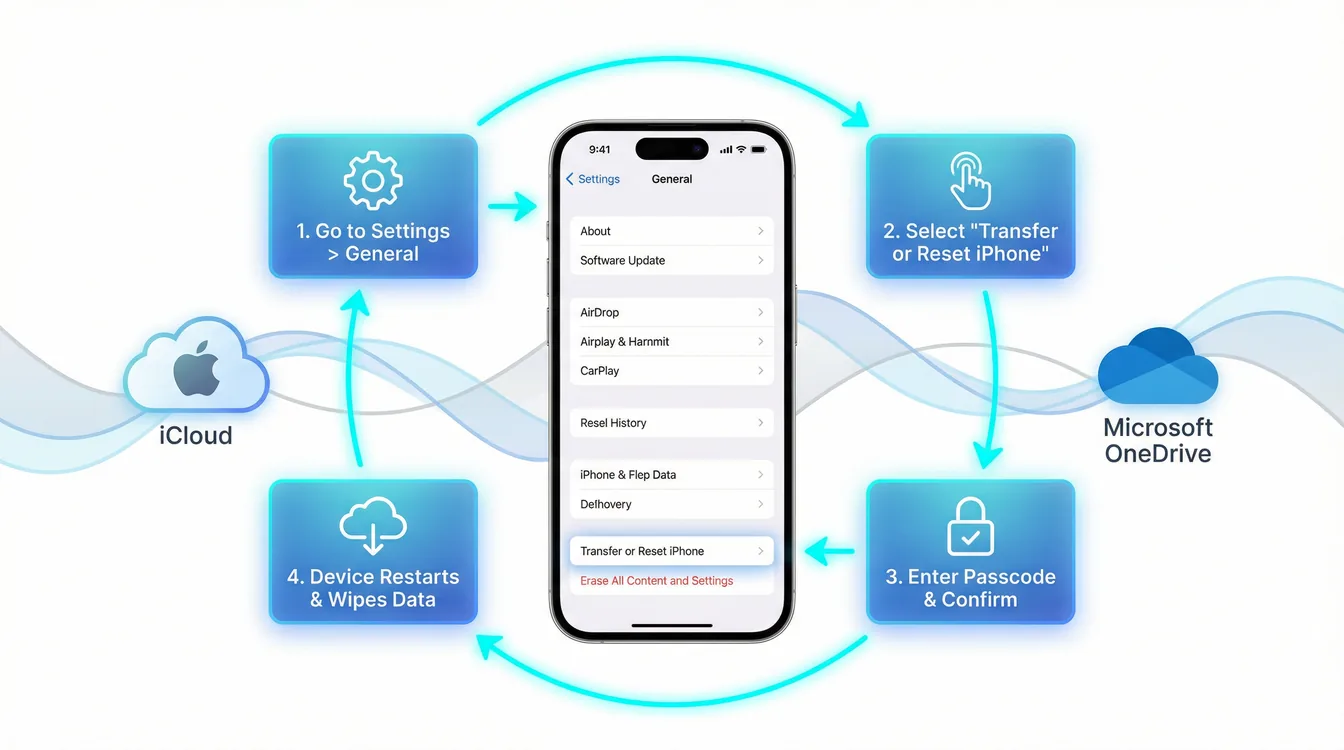
- Factory Reset the Device: On the iOS/iPadOS device, use Apple's erase path — Settings > General > Transfer or Reset > Erase All Content and Settings. You can also wipe the device from the Intune admin center. Either way it has to be a full erase; a simple settings reset will not work.
- Re-run Setup Assistant: Proceed through the initial setup screens (Language, Region). When you connect to Wi-Fi, the device will contact Apple's servers.
- The Critical Moment: The "Remote Management" screen will appear, indicating that the device has successfully found its assignment in ABM. Proceed with the on-screen instructions to authenticate with Microsoft Entra ID.
- Verify Success: Once setup is complete, check the device's status in Intune. It should now show as Supervised and Managed, with a recent contact time.
Prevention: Avoiding This Issue in the Future
Fixing the problem is good, but preventing it is better. Implement these best practices to ensure a smooth, zero-touch enrollment experience from day one.
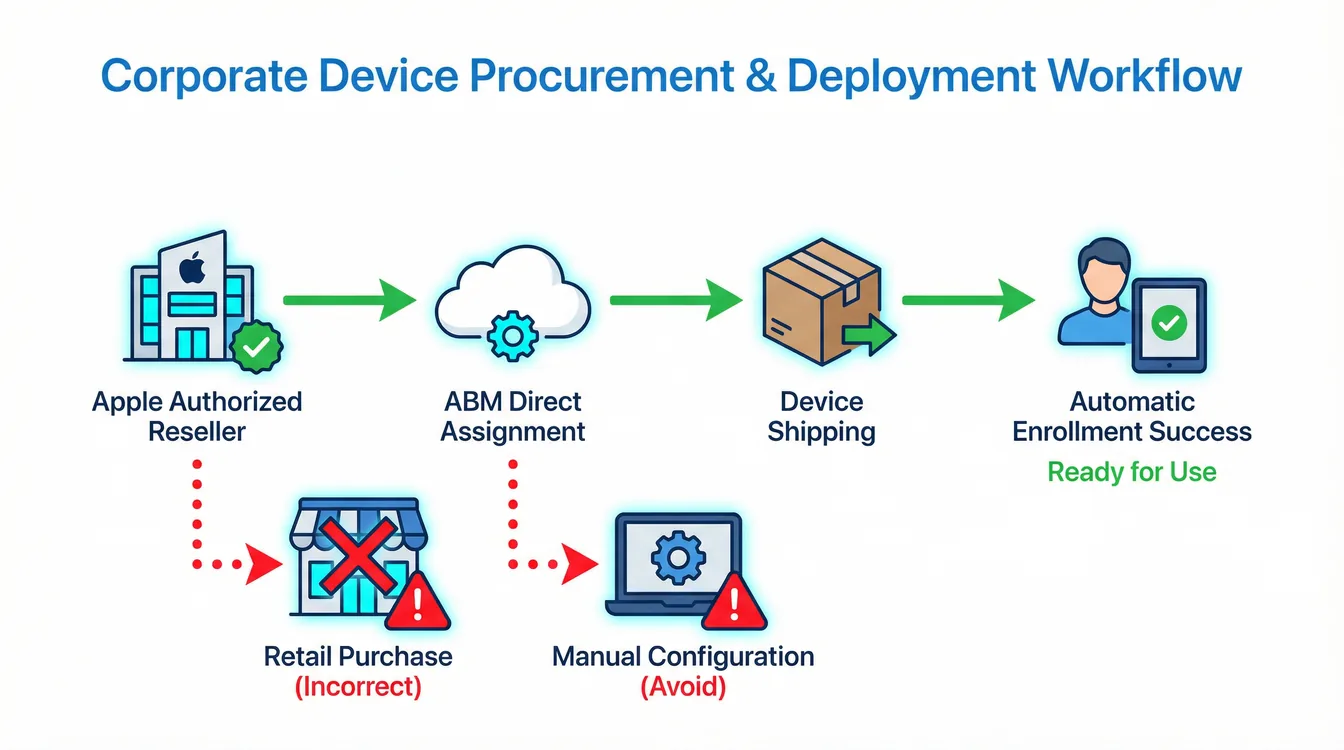
Best Practice 1: Procure Devices Through Authorized Channels
- Always purchase devices from Apple or an Apple Authorized Reseller.
- Provide your Apple Customer Number or Reseller ID at the time of purchase.
- This ensures devices are automatically added to your ABM account before they are shipped, making them ready for zero-touch enrollment out of the box.
Best Practice 2: Establish a Clear Device Procurement Policy
Create a formal policy that prohibits employees from purchasing corporate devices from retail stores. Enforce this through your expense policies and asset management procedures.
Best Practice 3: Use Intune Enrollment Restrictions and Conditional Access
- Configure Enrollment Restrictions in Intune to block personally owned iOS/iPadOS devices from enrolling.
- Implement a Conditional Access policy that requires devices to be marked as compliant before they can access corporate resources. This provides a powerful business justification for enforcing proper enrollment procedures.
Zero Trust. Zero Drama. Zero Bullshit.
Once your iOS fleet enrolls cleanly, protect corporate data on BYOD phones with Intune app protection policies (MAM), and deliver the same zero-touch experience on Windows with Windows Autopilot.
Frequently Asked Questions
Can Intune manage Apple devices?
Yes. Microsoft Intune manages iPhones and iPads (iOS/iPadOS) and Macs (macOS). For corporate Apple devices, you enroll them through Apple Business Manager (ABM) with Automated Device Enrollment, which applies supervision and management automatically — enabling Conditional Access, compliance, and app management across the Apple fleet.
Why does my iPad show "Not Contacted" in Intune?
"Not Contacted" usually means the device was activated before it was added to Apple Business Manager, so it never pulled the ABM enrollment profile. A device that has already completed Setup Assistant does not run the ADE check again — Microsoft's own guidance is that an already-activated device has to be wiped before it can enroll through automated device enrollment. The fix is a full erase (Erase All Content and Settings, or a wipe from Intune) so the device re-checks ABM during Setup Assistant.
How do I prevent ABM enrollment issues?
Buy Apple devices through Apple or an authorized reseller and provide your ABM/reseller ID, so devices land in ABM before shipping. Add Intune enrollment restrictions to block personally owned Apple devices, and require compliant devices via Conditional Access. That makes zero-touch enrollment the default.
Get Expert Help
Need help streamlining your iOS device management, setting up ABM, or troubleshooting complex Intune issues? Visit easym365.de for expert consulting and hands-on support.